|
Home
Download
System Requirements
Contact Info
Playing the game
Setting up a Multiplayer Game
High Scores
Creating Maps
Version History
Miscellaneous
Privacy
Map Downloads
|
One-pc-multiplayer Game (hotseat)
LAN Game
Internet (Online) Game
Testing your Game Server
Saving Lan / Internet games
One-pc-multiplayer Game (hotseat)
This is most suitable if
 |
you all are in the same room,
|
|
|
only 1 PC available |
|
|
you don't like the hassle of configuring firewalls, routers, finding IP's ... |
The minimum number of players required for an all-human game is 3.
LAN Game
Empire XP supports up to 5 human players per game using the TCP/IP protocol.
Configure your firewall to allow Empire XP through (without alerts).
Go to Settings -> Privacy & Security
-> Windows Security -> Firewall & network protection -> Allow an app through
firewall
and tick the box in Private (see
picture below in Internet Game)
|
|
Hosting a Game
|
To start a new game over a network, click "LAN game,
create and host a game" and then wait
for other players to join the game.
The host determines the map (World/Europe/...), the number of players and other
variables for each network game.
The following message appears on the status bar: Waiting for others to
join... Hostname:
Connected players are listed with their names on the place where normally the
computer player names should appear (World : South Atlantic)
The following message appears on the status bar: Waiting for others to join...
Choose Launch to begin with current players.
After everyone has joined, the host presses
Launch to begin.
|
|
Joining a Game |
To connect to
a game that is waiting to begin over a network, click "LAN game, join a game" .
In order to join, all you need to know is the host's Hostname or IP address or
press Enter at the IP address input dialogue for an automated search.
If the host has a game set up and waiting, you'll be able to select it and join
the game.
Once connected, you are placed in a wait state until the host of the game
chooses to start the game.
The following message appears on
the status bar: Waiting for host to start game...
or, if something went wrong:
ERROR - Can't
find the host's game. Be sure to start the server first.
To retry, press New game.
You will be able to see the game options that the host selects.
Connected players (including the host) are listed with their names on the place
where normally the computer player names should appear (World : South Atlantic,
WorldII : Indian ocean).
The automated
search can be slow and is limited to 10 computers.
back to top
Internet (Online) Game
Much of the above
applies here too.
Players from all over the world can select your
game by connecting to your public IP
If you are behind a router, you may
want to configure your router to forward port
5466 requests to your computer (check your router's manual and website).
Configure Windows
Firewall for Empire XP.
Go to Settings -> Privacy & Security
-> Windows Security -> Firewall & network protection -> Allow an app through
firewall
and tick the boxes in Private and
Public.
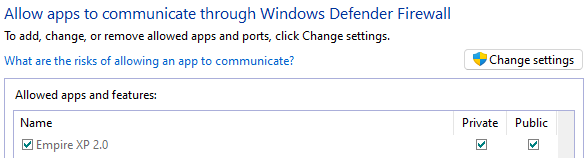
Port Forwarding.
Open your web browser and type in the IP address of the router (192.168.0.1 by
default).
Enter the username (admin) and password (blank by default), and then click OK or
Log In.
Go to Forwarding and enter the port 5466
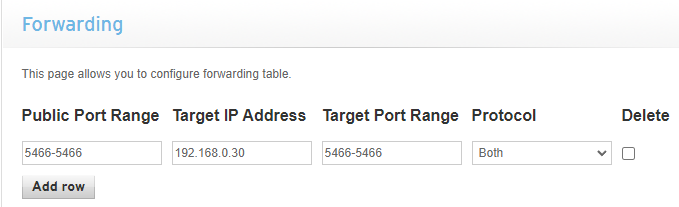
Target IP Adress is your internal ip,
you can find it wit ipconfig in a command box or in Empire XP
(Settings -> Hosting Internet
Games..)
back to top
Testing your Game Server
The game provides an easy way of testing your game server before running
everything via the internet:
Start Empire XP, choose Multiplayer Game, Internet (Online) Game, Create and
host a Game, World, name, Your friends know your IP address, Go to listen mode.
Start a second copy of Empire XP on the same pc, choose Multiplayer Game,
Internet (Online) Game, Join a Game, name, Type in the host's IP address (enter
your public/external IP).
If it responds with "Choose Launch to begin with current players" and "Waiting for
host to start game" you are doing well.
If it responds with an "Can't find the host's game" error then you'll have to
dig deeper, go to the Settings -> Hosting Internet Games.. dialog again and try
other settings.
Some other hints:
Try this again with the firewall(s) disabled (Windows Firewall and other
firewall running)
After you've configured portforwarding, you need to restart windows because it
still uses the blocked connection
back to top
Saving Lan / Internet games
|
|
Only the host can save a game, prefix INT_ for internet
games, LAN_ for lan games |
Start a saved multiplayer game:
|
|
The host loads the saved game, the joining players go to
new game, multiplayer (lan or internet, depending on what it was) , join,
and enter the IP / Hostname. |
|
|
The human player names should be the same as those
used in the original game, this is necessary for the program to find your
armies and territories again. |
|
|
Human players can take over from computer players. |
|
|
If one of the players is not available to continue the
game, this player will be replaced by a computer player (after the host
chooses Launch to start the game). If this is not what you want, then see
the localhost player option below. (In this way, of course, the host has 2
players at his disposal.) |
|
|
Host player, during connect phase: the human player names
will be displayed as xx.. (the first 2 letters of the original human
player name followed by ..). In this way, it is visible that the human
player connects to the game. This xx.. can be overwritten by other human
player names / the order is not the same as in the original game; Launch (start game) rearranges the names. |
|
|
After everyone has joined, the host presses F2 to begin. |
|
|
Player's colors are not necessarily the same. |
Localhost player:
The host player launches a second copy of Empire XP (new
game, multiplayer, join) and enters the missing player's name, type localhost as
the hostname/IP.
back to top
|